 LucidRows
IMPORTHTML or IMPORTXML not working? Why the result is empty and what to do
Sheets formulas work well for simple tables. When the result is empty, or you only get part of the list, this page explains why and gives a no-code fallback. If the table is a plain HTML table in the page source, IMPORTHTML is fine and you need nothing else.
Why the formula comes back empty
IMPORTHTML takes a url, a query, and an index. The query is "table" or "list". The index starts at 1. It counts tables or lists as defined in the HTML source. IMPORTXML takes a url, an xpath_query, and a locale. Both formulas read that source.
The list is built after the page loads
Many directories and a store's product list are drawn by the page's own scripts after the first HTML arrives. The words are on the screen. They are not in the HTML source the formula reads. If a word from the list is missing in View Source, the formula cannot see it.
Sheets may show "Imported content is empty" when that happens.
The data is cards, not a table or a list element
A product card or a directory entry is often a block on the page, not a table and not a list element. IMPORTHTML only counts those two kinds of markup, as defined in the HTML source. Cards can still be list items: an article, a list item, a table row, or a section. The formula does not treat a card as a table just because it looks like one.
Only page one is in the result
The formula reads one address. The rest of a directory often sits behind Load More or next pages.
Some sites refuse automated requests
Some sites refuse automated requests. The page you see in Chrome can look normal while the formula request is turned away.
Sheets may show "Could not fetch url" or #N/A in that case.
Quick checks first
The index counts tables and lists separately, and it starts at 1. If index 1 is empty or is only a menu, try 2 or 3.
For IMPORTXML, check the XPath. A path that points at a wrapper can return nothing even when the words are in the source. Shorten it until it matches one repeating node.
Use View Source (Ctrl+U) and search for a word from the list. If that word is not in the source, the formula cannot see it. No change of index will invent text that was never written into the HTML.
If the word is in the source and the markup is a real table or list, keep the formula. The steps below are for the page you see when the source does not hold the list.
A no-code way to get the list
LucidRows runs inside your own Chrome tab. It reads the page you see, after that page's own scripts have run. It does not send the rows anywhere.
-
Install
Add LucidRows from the Chrome Web Store and pin the icon.
-
Open the page in Chrome
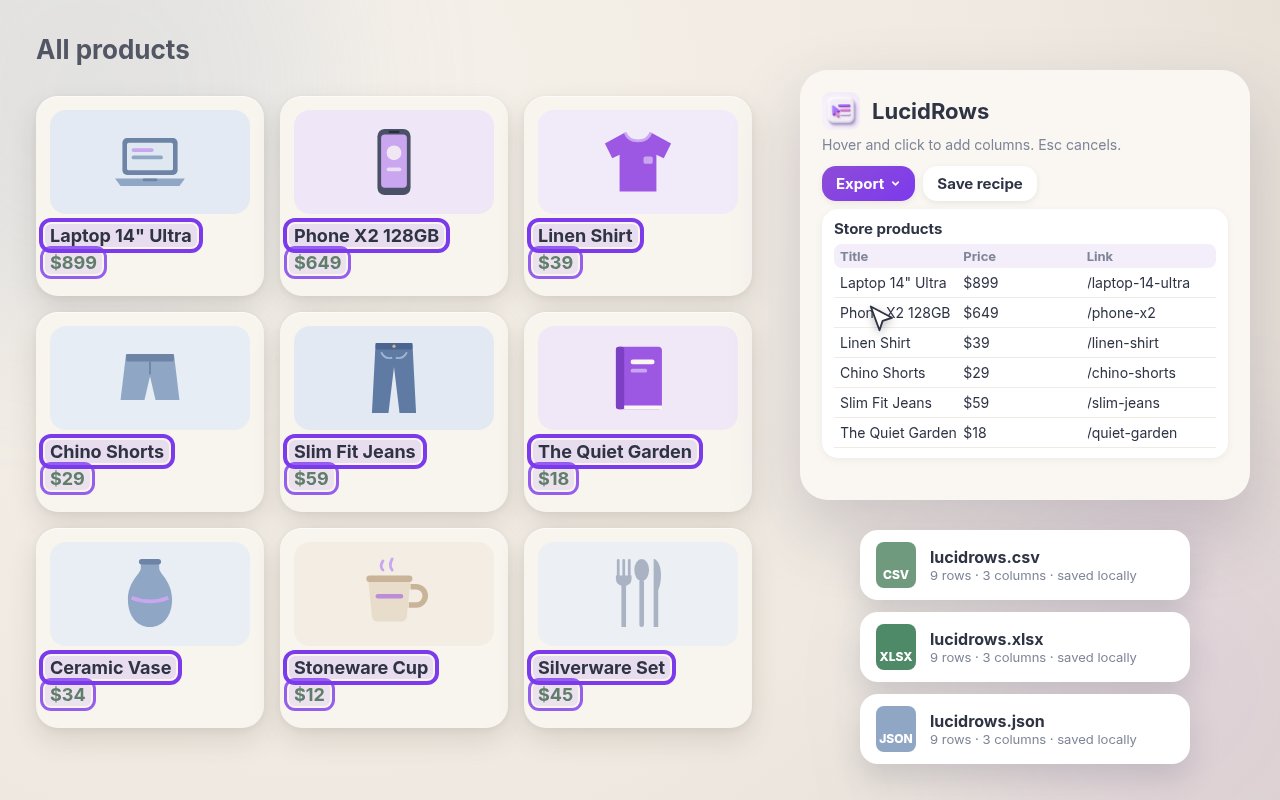
Open the directory or the store's product list and wait until the cards or rows are on screen. LucidRows reads that page, not a separate copy of the address.
-
Name a column, then click one field
Click Start picking. Type a column name, such as Title. Then click that field inside one card. LucidRows finds the same field on the similar cards. You add each column yourself. The first-click flow is in the full LucidRows guide and on the free web scraper for Chrome.
-
Add columns and edit the preview
Name the next column and click one matching field. Repeat for each value you want. The preview is editable: rename a header, move a column, fix a cell, or use Broader and Narrower when the click landed on a wrapper. Stop ends a walk whenever you want. A real grid is covered on scrape a table to Excel (.xlsx).
-
Load More, or Walk pages
Load More runs in the tab, on the page you see. Walk follows next pages on the same site only, up to 50 pages. The row limit is 200 by default, and you can set it from 1 to 5,000. Steps are on scrape multiple pages.
If the next pages are also built by scripts, Walk may add no rows. Walk reads those links as fetched HTML and does not run their scripts. Page one and Load More are what see the page after scripts have run.
-
Export CSV, Excel (.xlsx) or JSON
Open Export and choose CSV, Excel (.xlsx) or JSON. The file matches the preview. CSV starts with a UTF-8 mark so accents survive. Nothing is uploaded.
-
Import the file in Google Sheets
In Google Sheets, use File, Import, Upload, and choose the CSV. Or pick Excel (.xlsx) from Export. LucidRows does not write into the sheet.
FAQ
- Does LucidRows update the sheet automatically?
- No. You export a CSV and import it. Run a saved recipe again for fresh rows.
- Is my data uploaded?
- No. Scraped rows stay on your computer. A walk only loads the next page of the same site so more rows can be merged.
- The formula works, but I only get page one. What now?
- Keep the formula if page one is a real table in the source. Use Load More in the open tab for a button that adds rows. Walk can follow plain next-page links on the same site. If those next pages are built by scripts, Walk may add no rows.
- Can I save the columns?
- Yes. Save a recipe in Chrome on this computer. There is no account, and the rows are not uploaded.
Install details, preview edits, and the rest of the panel are in the full LucidRows guide.