 LucidRows
How to scrape a table from a website to Excel (free, no code)
This page is for tables on web pages, and for lists that behave like tables. LucidRows does not read PDFs. You click one cell, check a preview, and open Export for CSV, Excel (.xlsx) or JSON. Excel (.xlsx) keeps leading zeros and long IDs as text. There is no code and no account.
Why copy and paste breaks
Copying an HTML table into Excel looks fine for two rows and then falls apart. Links get lost, because the paste keeps the words and drops the address behind them. Cells merge, so one heading stretches across columns you wanted to keep separate. And only the first page comes across, so a long result list stops at whatever was on screen.
A website to Excel job needs the columns you named, not the whole page chrome. LucidRows lets you copy a table from a website by clicking the cells you care about, then export that preview. It does not auto-detect every column, and one click does not export the whole table.
Step by step
-
Install
Add LucidRows from the Chrome Web Store and pin the icon. Open the page that holds the table.
-
Name the column “Name”
Click Start picking. Type Name as the column name. Then click one cell in the body of the table, not the header. LucidRows treats each body row as an item and fills Name for every similar row.
-
Add columns
Name the next column and click one cell in that column. Repeat for each field you want. The preview is editable: rename a header, remove a column, reorder columns, or fix a cell. Broader and Narrower help when the click landed on a wrapper instead of the text. Image columns save the image URL, which is useful when a paste would only show a broken picture.
-
Check the preview, then export
Read the preview before you download. Open Export and choose CSV, Excel (.xlsx) or JSON. The file matches the preview, including the column order you set. CSV begins with a UTF-8 mark so accents stay readable. Excel (.xlsx) keeps leading zeros and long IDs as text.
More preview and install detail is in the full LucidRows guide.
Open the export in Excel
Choose Excel (.xlsx) from Export when you want a spreadsheet file. For CSV, use Data, then From Text/CSV, and pick UTF-8 if Excel asks for an encoding. You already chose the columns, so the sheet should match the preview.
Google Sheets is the same file. Use File, then Import, and upload the CSV. You do not need a second export.
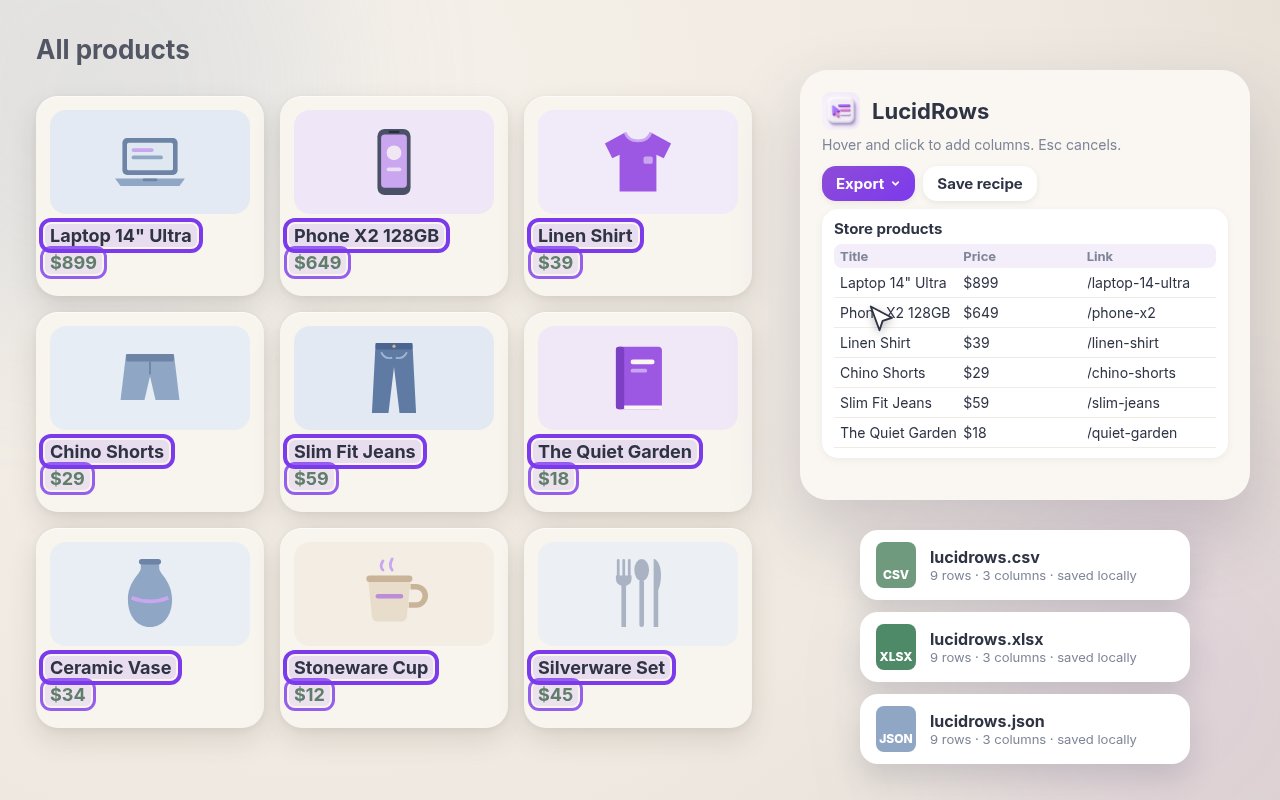
When the “table” is really a list of cards
Products, listings, and jobs are often cards, not an HTML table. The clicks are the same. Name a column, click one field inside one card, and LucidRows finds that field on the other cards in the list. You still add each column yourself. If you wanted a free web scraper that starts from a card list rather than a grid, start at the Chrome web scraper page.
Table spread over several pages?
Page one is often not the whole html table to Excel job. When a next link, a Load More button, or more rows below the fold hold the rest, use Walk pages. The steps are on scrape multiple pages. Walk stays on the same site, up to 50 pages, and stops at the row limit you set in Collect up to. The default limit is 200 rows. You can set it from 1 to 5,000. Stop ends the walk whenever you want.
Troubleshooting
If nothing appears in the preview, name the column first, then click a nested, repeating field inside a card or a body cell, not a one-off header. That is the same fix as on the guide. A header is one label for the page. A repeating field is the value that shows once per row.
FAQ
- Does LucidRows detect the whole table for me?
- No. You click one cell per column. Header cells are not turned into rows.
- Will accents, leading zeros, and long IDs survive?
- CSV starts with a UTF-8 mark so accents are more likely to look right. Excel (.xlsx) keeps leading zeros and long IDs as text instead of scientific notation. In Excel, choose UTF-8 if a CSV import box asks.
- Can I save this column setup?
- Yes. Save a recipe in Chrome on this computer and run it again. There is no account, and the rows are not uploaded.
Questions about install or preview edits belong on the full LucidRows guide.