 LucidRows
How to scrape multiple pages: Load More buttons and next-page links
Scraping multiple pages means the rows after page one, not a second copy of the first screen. LucidRows uses one button, Walk pages, to follow a Load More control, to scroll a lazy list, and then to open next-page links. The rows merge into one preview. Open Export for CSV, Excel (.xlsx) or JSON when the preview is complete.
Three kinds of “more”
Lists hide the rest of their rows in three ordinary ways. Walk pages is built for all three, in that order, on the site you already have open.
- Next-page links. A numbered pager or a Next control points at another HTML page on the same site.
- Load More buttons. The page stays put and more cards are added when you press the button. Walk clicks that control for you.
- Infinite scroll. More cards appear when you reach the bottom. Walk scrolls the list so those cards can load.
There is no separate control you have to name for settling the list. Walk pages does the click and the scroll, then moves on when a real next page is the right next step.
Step by step with Walk pages
-
Build columns on page 1
Open the first page of the list. Name a column and click one item, the same way you would for a single page. Add the other columns before you walk. A walk repeats those columns. It does not invent new ones. If you are still choosing fields on a single table, start with scrape a table to Excel (.xlsx).
-
Click Walk pages
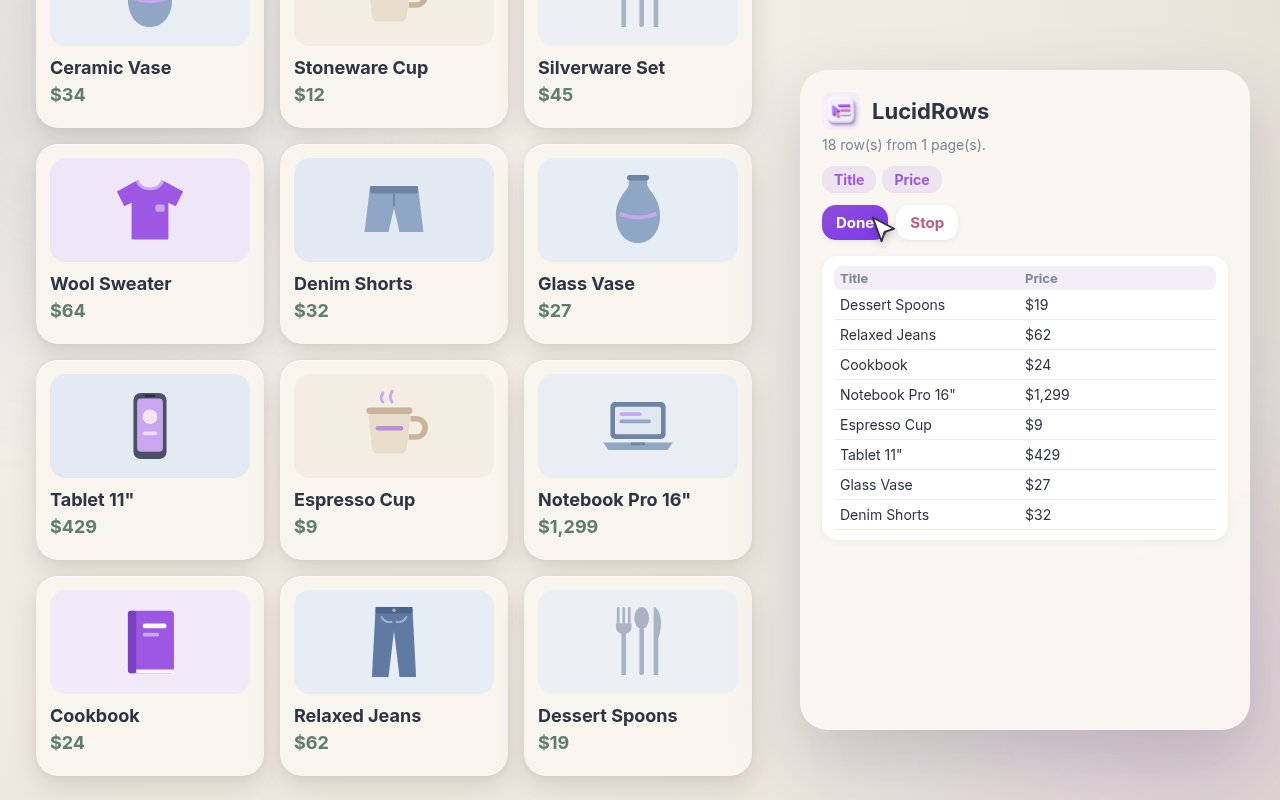
Walk pages loads more items, scrolls when the list grows by scrolling, and then follows same-site next links. You watch the preview gain rows. The merge keeps the columns you picked.
-
Press Stop at any time
Stop is in the panel. Press it when you have enough rows, or when the next page is not the list you wanted. The preview you already collected stays so you can export it.
-
Export
Export CSV, Excel (.xlsx) or JSON from the merged preview. The CSV matches that preview. You can save the column recipe locally and run it later without an account.
Install, the first click, and preview edits are in the full LucidRows guide. The short version of a single list is the free web scraper for Chrome.
Limits to know
The next page must be on the same site. Same origin means the same scheme, host, and port. A link that jumps to another site is not followed. One Walk covers up to 50 pages, counting the page you started on. It also stops when it reaches your Collect up to row limit. That limit is 200 rows by default. You can set it from 1 to 5,000. Those caps are there so a walk ends.
Be polite
A walk should move at a reasonable pace. You are loading real pages. Respect each site’s terms, and read the LucidRows terms before you collect a large list. If a site says automated collection is not allowed, do not use Walk there.
Troubleshooting
If Walk pages did not add rows, check that the next page is same-origin HTTP or HTTPS. A file you opened from your computer, or a link to a different host, will not extend the list. On a list that only grows when you scroll, give Walk pages time to reach the bottom before you decide it stopped. Name your columns on page one first. A walk cannot fill a column you never picked.
FAQ
- Does Walk pages leave the tab?
- It collects further HTML from the same site and merges rows into the preview you already have. You export from that preview.
- Can I stop halfway?
- Yes. Stop aborts the walk. Export the rows already in the preview.
- Are the extra rows uploaded?
- No. Scraped rows stay on your computer. The requests during a walk are loads of the next same-site page.
Column setup and the rest of the panel are in the guide section on more ways to collect.