 LucidRows
How to scrape a public directory into a clean lead or candidate sheet
Public directories repeat the same fields on every card. Association member lists, chamber of commerce listings, exhibitor or speaker lists, and supplier directories all work this way. Copy and paste breaks the columns. Retyping a long list is slow. This page shows a no-code way to turn the cards you can see into a sheet.
A made-up exhibitor list
Picture a trade-show exhibitor list. Each card shows Name, Company, Role, and Website. Some cards also show Phone or Email, printed in plain text for anyone who opens the page. Nothing here names a real show or a real company. The fields are the ones you would click.
LucidRows reads the text on the card. A phone number or an email comes through only when the card shows it. A link whose label is Website, Site, Web, or www saves the address behind the link, not the word Website. Hidden addresses, and anything the card does not show, stay out of the sheet.
Step by step
LucidRows runs in your own Chrome tab, on the page you already have open. It does not sign in for you. One click finds the same field on every similar card in the list. An article, a list item, a table row, or a section can each be one card.
-
Install
Add LucidRows from the Chrome Web Store and pin the icon. Open it on the directory tab.
-
Open the directory in Chrome
Go to the public directory and wait until the cards are on screen. You are working with the page you see, after that page's own scripts have drawn the cards.
-
Name the column "Name", then click one name
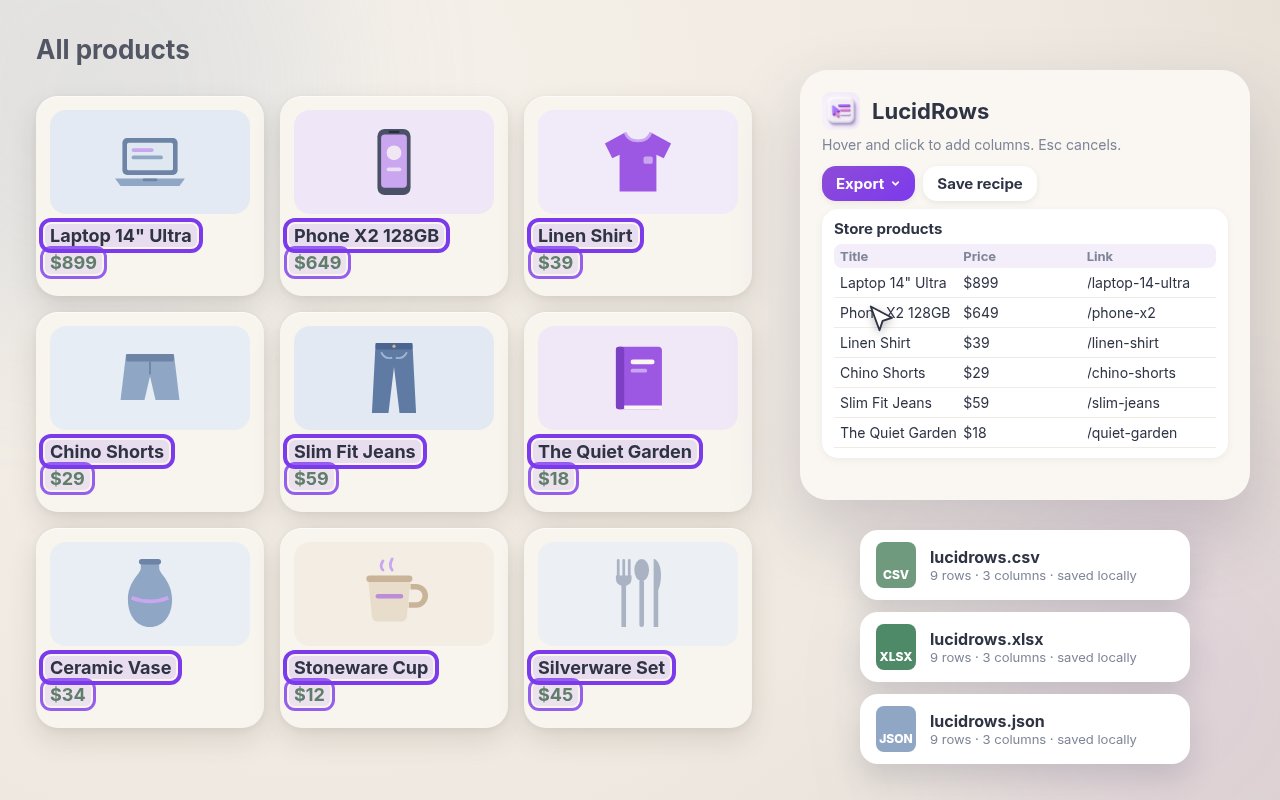
Click Start picking. Type Name. Click one person's name inside one card. LucidRows fills Name for the similar cards in that list. You still add every other column yourself. The same first click is described in the full LucidRows guide and on the free web scraper for Chrome.
-
Add Company, Role, Website, and contact text
Name the next column and click one matching field. Add Company, then Role. For Website, click the Website link on one card so the address is saved. Add Phone or Email only if that text is printed on the card. A grid of cells, rather than cards, is covered on scrape a table to Excel (.xlsx).
-
Load More, or Walk pages
A long directory often continues past the first screen. Load More runs in the tab and can click the button that adds more cards. Walk follows next pages on the same site only, up to 50 pages. The row limit is 200 by default. You can set it from 1 to 5,000. Stop ends the walk when you want. The steps are on scrape multiple pages.
Walk reads those next-page links as fetched HTML. It does not run their scripts. If the next pages are built by scripts, Walk may add no rows. Page one and Load More are what see the cards after scripts have run.
-
Clean the preview, then export
The preview is editable before you download. Rename a header, reorder columns, remove one you do not need, or fix a cell. Broader and Narrower help when the click landed on a wrapper instead of the text. Then export CSV, Excel (.xlsx) or JSON. The file matches the preview. The CSV starts with a UTF-8 mark so accents survive. Nothing is uploaded. Save a recipe in Chrome on this computer and run it again when you want a fresh copy of the same columns.
-
Open Excel (.xlsx) or the CSV
Choose Excel (.xlsx) from Export for a spreadsheet file that keeps leading zeros and long IDs as text. For CSV, in Excel use Data, then From Text/CSV, and pick UTF-8 if Excel asks. In Google Sheets, use File, then Import, then Upload. LucidRows does not write into the sheet for you.
Spot repeats in the sheet
After the import, sort the sheet by Name or by Website. Repeats are easier to see that way, before you use the list. LucidRows does not remove duplicate rows for you. The sheet is where you check them.
Responsible use
This page is for public directories only. Take only information the page shows to anyone who opens it. Follow that site's terms and its robots.txt. The LucidRows terms say the same thing: do not scrape against a site's terms, robots.txt, or similar rules.
Names, phone numbers, and emails are personal data, even when a directory prints them. Use them only with a lawful basis, and follow the privacy and anti-spam rules that apply to you. LucidRows does not log in, and it does not get past access controls. If a directory is closed to the public, this page is not the way in.
FAQ
- Can it read emails that are hidden?
- No. Phone and email come through as the text shown on the card. If the card does not show an address, the sheet will not have one.
- Does it work on pages that need a login?
- This page covers public directories only. Do not use it on a page that asks you to sign in. LucidRows does not sign in for you and does not get past access controls.
- Is the list uploaded?
- No. Rows stay on your computer. A walk only loads the next page of the same site so more rows can be merged.
- Can I keep this column setup?
- Yes. Save a recipe in Chrome on this computer. There is no account. Run the recipe again when you want fresh rows from the same public directory.
Install details and the rest of the panel are in the full LucidRows guide.