 LucidRows
Looking for an Instant Data Scraper alternative? Here is how LucidRows works
LucidRows is a free Chrome extension that turns a list or table on a web page into a spreadsheet. You choose every column yourself. There is no account. The rows stay on your computer, and you export CSV, Excel (.xlsx) or JSON.
How it works
LucidRows runs in the Chrome tab you already have open. It reads the page you see, after that page's own scripts have drawn the cards. You name a column, then click one field. The same field is filled for every similar card. An article, a list item, a table row, or a section can each be one item. A header cell is not turned into a row.
-
Install
Add LucidRows from the Chrome Web Store and pin the icon. Open it on the tab that holds the list.
-
Name a column
Click Start picking. Type the column name, such as Title or Company. The name is yours. LucidRows does not invent columns from the page.
-
Click one field in one card
Click that field inside one card. LucidRows finds the same field on the similar cards and fills the column. One click does not fill every column. You repeat the click for each field you want. The first-click flow is in the full LucidRows guide and on the free web scraper for Chrome.
-
Add the rest of the columns
Name the next column and click one matching field. A link whose label is Website, Site, Web, or www saves the address behind the link, not the word on the link. Other fields save the text you can see. A grid of cells, rather than cards, is covered on scrape a table to Excel (.xlsx). A public directory is on scrape a directory to Excel (.xlsx). An empty sheet formula is covered on IMPORTHTML or IMPORTXML not working.
-
Check the editable preview
Read the preview before you download. Rename a header, reorder columns, remove one, or fix a cell. Broader and Narrower help when the click landed on a wrapper. The download matches this preview.
-
Load More, or Walk pages
Load More runs in the tab and can click the button that adds more cards on the page you see. Walk follows next pages on the same site only, up to 50 pages. The row limit is 200 by default. You can set it from 1 to 5,000. Stop ends the walk when you want. The steps are on scrape multiple pages.
Walk reads those next-page links as fetched HTML. It does not run their scripts. If the next pages are built by scripts, Walk may add no rows. Page one and Load More are what see the cards after scripts have run.
-
Export CSV, Excel (.xlsx) or JSON
Open Export and choose CSV, Excel (.xlsx) or JSON. CSV starts with a UTF-8 mark so accents survive. Excel (.xlsx) keeps leading zeros and long IDs as text. Nothing is uploaded.
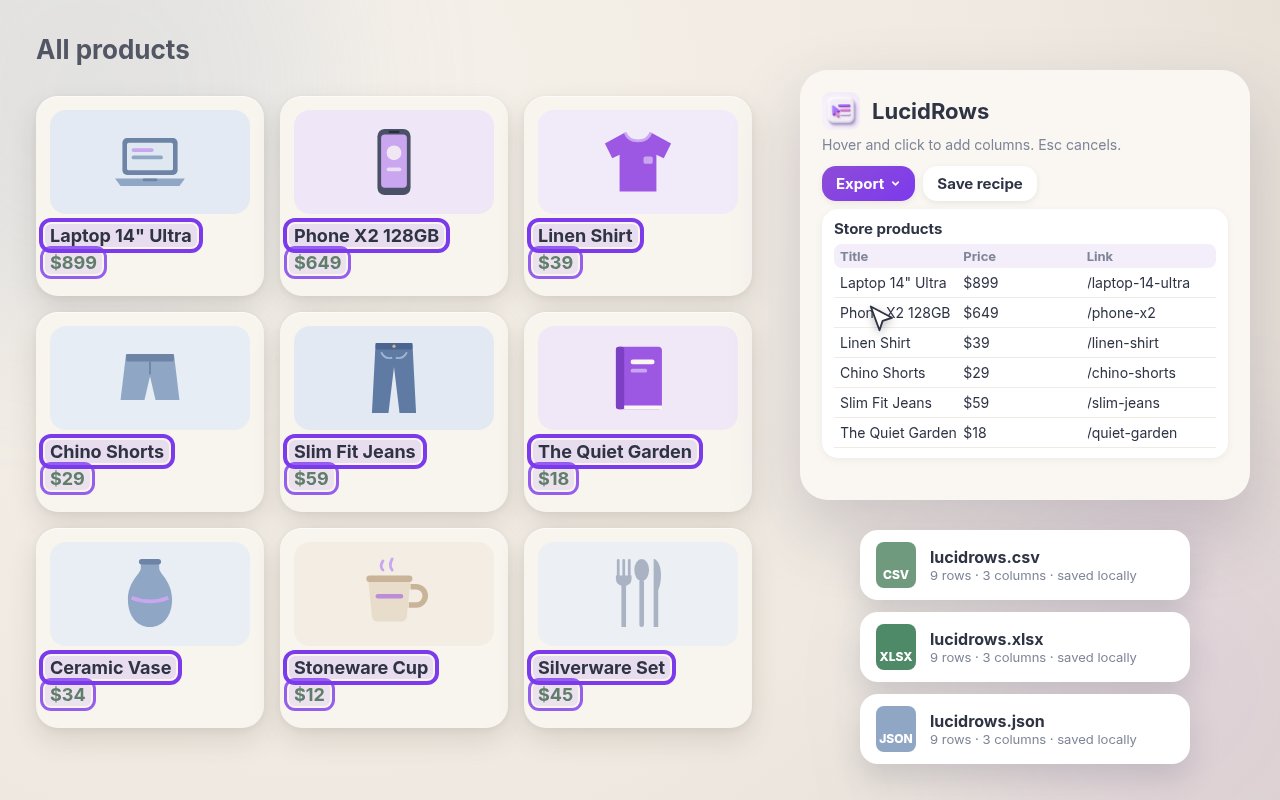
One click fills a column on every card
Product cards, job cards, and directory cards repeat the same fields. Click one field inside one card, such as the title or the detail line, and that column fills for every similar card. You still choose each column. LucidRows does not decide which fields belong in the sheet.
If the click grabs too much or too little, use Broader or Narrower and check the preview again. A one-off heading on the page is not a row. Click a value that repeats.
More rows, on the same site
The first screen is often not the whole list. Load More stays in the open tab. Walk follows next-page links on that same site, up to 50 pages, and stops at the row limit you set: 200 by default, up to 5,000 in one run.
Do not expect Walk to rebuild a next page that only appears after that page's scripts run. Those links are read as HTML. If the rows are missing from that HTML, Walk adds nothing for that page. Use Load More when the button is on the page you already see.
What stays on your computer
There is no account. Scraped rows are not uploaded. A recipe, the column setup, stays in Chrome on this computer. The download is CSV, Excel (.xlsx) or JSON.
What LucidRows does not do
You select each field yourself. Selectors are best-effort: a page can change, and a click that worked yesterday may need a new click today. There is no cloud scheduling. There are no proxies. There is no CAPTCHA solving. There is no login automation. If a list is behind a sign-in wall, this page is not the way through it.
The export is CSV, Excel (.xlsx) or JSON from one Export menu. LucidRows does not write into a sheet for you. You import the file yourself.
FAQ
- Do I have to pick every column?
- Yes. One click per column. Name it, click one example, and check that the preview filled the similar cards.
- Can I save the setup?
- Yes, as a recipe in Chrome on this computer. There is no account. The rows from a run are not stored on a server.
- Is the list uploaded?
- No. Rows stay on your computer. A walk only requests the next page of the same site. The download is CSV, Excel (.xlsx) or JSON.
- Will every next page come back with rows?
- Only when the next page is on the same site and the rows are in the fetched HTML. If it is built by scripts, Walk may add no rows. Load More still works on the page you see.
Install details and the rest of the panel are in the full LucidRows guide.